
In the computer world, widget comes from the English words “window” and “gadget”. Widgets are graphical and interactive interfaces that generally provide the latest data in a chosen field: weather, news, latest social network posts, etc.
With Windows 11, Microsoft offers Widgets, a new application that allows you to access widgets and add new ones in order to have access to useful information.
Although at first sight interesting and useful, widgets can be annoying. Especially since a Widgets icon is displayed in the taskbar by default. For those who like to navigate between dozens of windows, the smallest space in this bar becomes crucial.
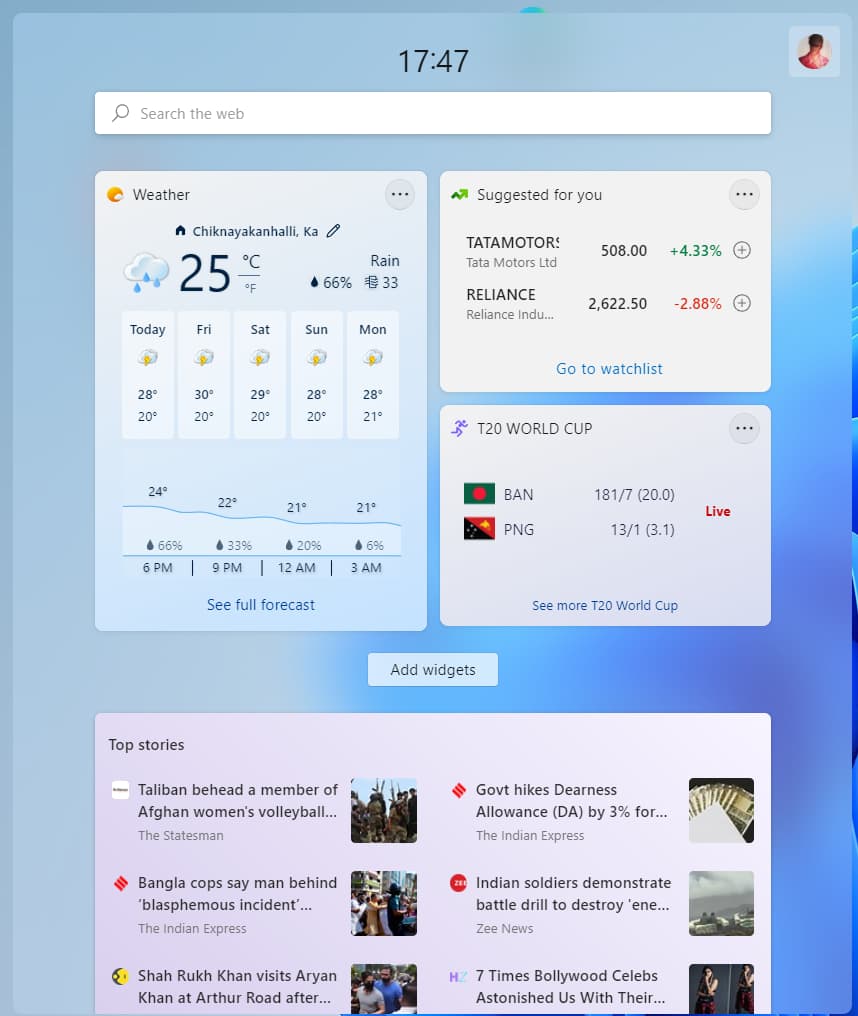
Do you want to remove and get rid of that Widgets icon that doesn’t serve you? Or would you rather remove Widgets from Windows 11 altogether?
First, we’ll explain how to disable Widgets in Windows 11 and then how to re-enable them if you change your mind. Finally, we will see how to uninstall and permanently remove Widgets from Windows 11.
Disable/enable Widgets in Windows 11
Disable Widgets in Windows 11
Since Windows 11, Microsoft’s Widgets have become embedded in the operating system.
Follow these two quick and easy instructions to disable Windows 11 Widgets:
1. Right-click on the Taskbar, then select Taskbar Settings.

2. In the Settings panel Click on Hide Taskbar.

Note: Disabling widgets does not mean uninstalling them.
Perfect: You’ve removed the Widgets icon from the Windows 11 taskbar! ????
Enable Widgets in Windows 11
Widgets are disabled, but you’d like to quickly check the weather or the latest news shared by Microsoft?
Follow these instructions to back out and enable Windows 11 Widgets:
1. Right-click on the taskbar.
2. Click Taskbar Settings.
Enable Widgets.
Perfect: You’ve (re)enabled Windows 11 Widgets! ????
Uninstall Windows 11 Widgets
Disabling Widgets may not be enough for you. This is because by disabling only Widgets, the processes “Windows Widgets” and “Widgets.exe” are still running in the background:

Don’t worry: it is possible to uninstall and permanently remove Widgets from Windows 11 using PowerShell and Windows Package Manager.
Here is how to do it:
1. Right-click on the Start menu and then click on Windows Terminal (Administrator). Enable User Account Control.

2. In the Windows Terminal window, enter the following command:
winget uninstall "MicrosoftWindows.Client.WebExperience_cw5n1h2txyewy"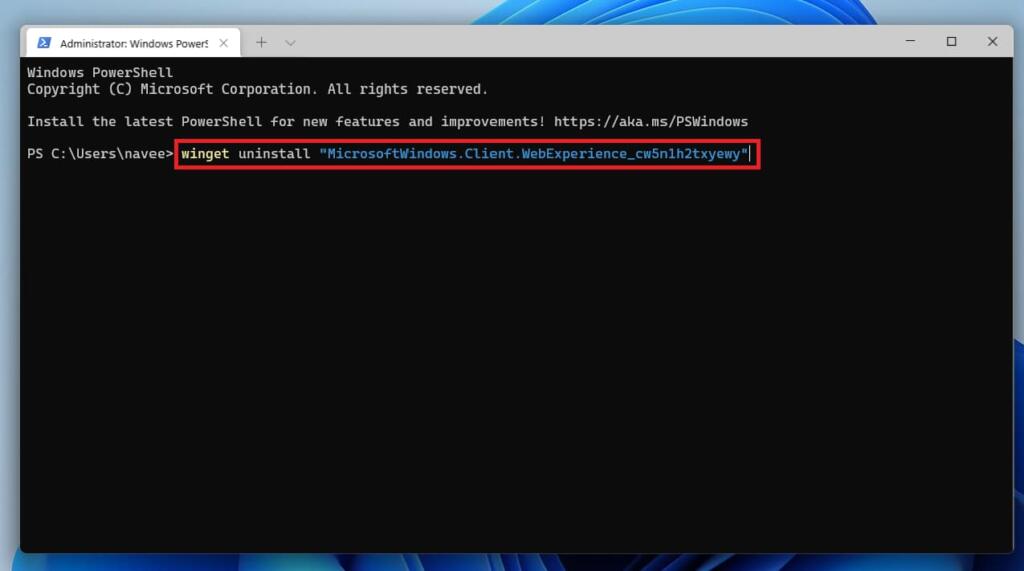
3. Then type Y and press enter.
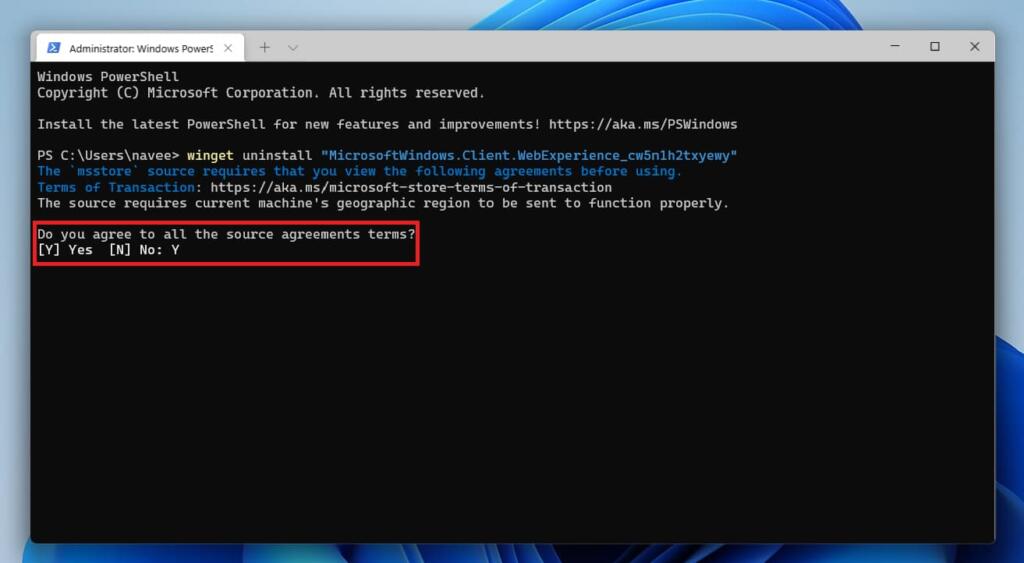
The uninstallation of the Windows 11 Widgets has been successfully completed.
Note: the Widgets icon may still be present in the taskbar. Right-click on it and click on Hide Taskbar.
Congratulations: you have removed and uninstalled Widgets from Windows 11! ????
